How to extract only the PDF pages you need, in the right order
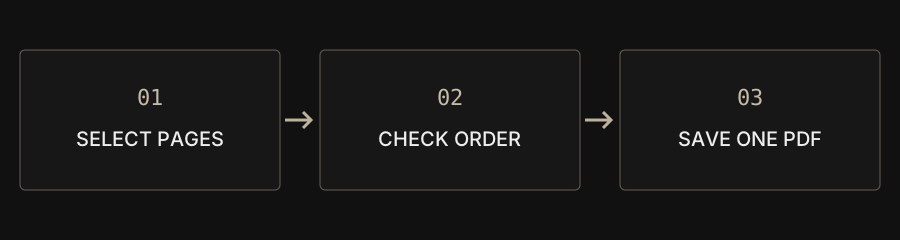
Select the pages to keep in Split PDF, then save them together in one new PDF. Nothing is selected initially. This tool does not automatically create a separate PDF for every page.
| Selection | Output | Remember |
|---|---|---|
| 1,3,5-8 | Six pages in one PDF | Actual positions, including covers |
| 3,1,2 | Custom page order | Duplicates appear once |
| Empty | No export | Select pages to keep first |
Am I selecting pages to keep or delete?
The selected pages are kept. To extract pages 3 and 7 from a 20-page file, select only those pages. To remove page 4, keep the other required pages. Initial thumbnails are unselected and processing requires a valid selection. This avoids exporting the whole document when you meant to make a shorter attachment.
How do I check a small thumbnail?
Use the magnifier at the top right of a thumbnail to inspect that page. Close the enlarged view and decide whether to keep it. Similar covers and appendix layouts can be misleading at small sizes. For a long document, enter a range first and inspect the important pages without converting the entire file into images.
What does 1,3,5-8 mean?
It keeps pages 1, 3, 5, 6, 7 and 8. Commas separate entries; a hyphen joins an inclusive range. Numbers refer to actual page positions in the PDF, including the cover, rather than printed chapter or Roman-numeral labels. Enter 3,1,2 for that output order. Repeated page numbers are included only once.
Why can I not process a blank range?
Blank means no selection in this tool, not all pages. Choose thumbnails, use Select all or enter valid numbers. Out-of-range or invalid entries must be corrected before export. When replacing the source file, review your selection again because page positions may no longer refer to the same material.
Can I save every page as a separate PDF?
This workflow creates one PDF containing all selected pages. It does not batch-split every page into a separate file. For a few separate pages, select and download one page at a time. For a large automatic split, use a tool explicitly supporting that output. Follow the recipient’s attachment rules when deciding how to package pages.
What should I check in the result?
Open the saved PDF and verify count, first page, last page and order. The original is not overwritten, but kept pages can still contain annotations or sensitive information. Extraction is not secure redaction. Rotate an incorrectly oriented result or merge extracted sections from different documents using the matching tools.