Why does TXT to Word conversion produce garbled text?
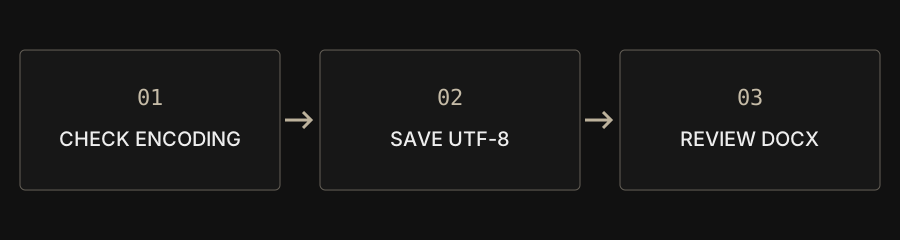
Open the original in an editor that displays it correctly, save a UTF-8 copy, then use TXT to Word. Renaming an extension does not convert a file or recover text that has already been corrupted.
| Problem | Try | Avoid |
|---|---|---|
| Garbled source text | Choose the correct source encoding, then save UTF-8 | Overwriting the original |
| Need editable paragraphs | Convert TXT to DOCX | Renaming the extension |
| Need complex layout | Format the DOCX in an editor | Treating tabs as tables |
Check the actual input format
TXT stores plain text, while DOCX contains a structured document package. Changing a filename from .txt to .docx does not create that structure. A photo or scanned PDF needs a separate text-recognition workflow before it can become editable text. Keep the original and work on a copy.
Confirm encoding before saving a copy
A .txt extension does not identify the character encoding. Open the source in an editor with encoding controls and check names, punctuation and non-Latin characters. Once the text is readable, save a UTF-8 copy. CAPYPDF decodes UTF-8 and does not automatically detect Big5 or other legacy encodings. Saving already garbled text as UTF-8 does not reconstruct missing characters.
Understand line breaks and formatting
TXT to Word creates a paragraph for each input line. Hard line breaks copied from another system can therefore produce many short paragraphs. Clean unnecessary line breaks in a copy while keeping real paragraph boundaries. Tabs and spaces do not become tables, and Markdown or HTML markup does not become styled content.
Convert a small sample and review it
Open TXT to Word, add one UTF-8 TXT, choose the available document options and download the DOCX. The text-file limit is 5 MB and this workflow handles one source file at a time. Open the result in Word or a compatible editor and check the beginning, end, blank lines and special characters before applying headings or page breaks.
Choose editable text or a reading copy
Use DOCX when the recipient needs to edit the text. Use DOCX to TXT to extract plain text from an existing document, without expecting images or complex table layout. For a paginated reading copy of plain text, try TXT to PDF and review fonts and page breaks. Choose the workflow from the required result rather than the extension alone.