How can I crop PDF margins without cutting off text?
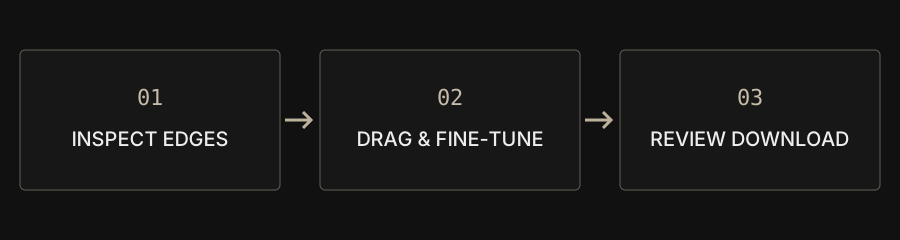
Inspect the page, drag the crop edges and fine-tune the four crop distances. Use Crop PDF for visible margins and Split PDF to keep whole pages. Cropping does not permanently remove hidden information.
| Goal | Workflow | Check |
|---|---|---|
| Trim visible margins | Crop PDF | Text and footnotes remain visible |
| Keep selected whole pages | Split PDF | Page selection and order |
| Permanently remove sensitive text | Dedicated redaction workflow | Cropping is unsuitable |
Decide whether to change bounds or page count
Large scan margins and unwanted whole pages need different workflows. Crop PDF changes the visible area of a page. It does not split one page into two new output pages. If you only need pages 1, 3 and 5, use Split PDF to select those pages and save a new document.
Use the preview and exact distances
Add one PDF and inspect the page edges, footnotes, stamps and page numbers before dragging the crop edges or corners. Fine-tune top, right, bottom and left distances in PDF points. A small thumbnail cannot show every detail, so review the downloaded output at a useful zoom level and keep the original.
Check mixed layouts before applying one crop
A document can mix landscape, portrait and different page sizes. Enter the page range to process and test a small selection first. CAPYPDF does not automatically detect a separate white-space boundary for every page. Process different layouts separately when needed. If orientation needs correction, use Rotate PDF and reassess the visible area.
Do not confuse cropping with redaction or compression
Cropping changes visible page bounds. Text and images outside them may remain in the file, so the download may not become smaller. Do not use it to permanently remove account details or personal information. Sensitive content requires a dedicated redaction workflow that removes the underlying data and a separate verification of the result.
Review the saved result
Open the downloaded PDF in a separate reader and inspect every affected page for clipped tables, footnotes and signature appearances. If your real goal is an attachment-size limit, consult the PDF compression guide and compare the available modes. A smaller visible page area is not evidence of a smaller file or safely deleted content.